
How to Speed Up Windows 11
15 Proven Tips to Make Your PC Feel Like New
COMPUTER
Posted by Tae Kim
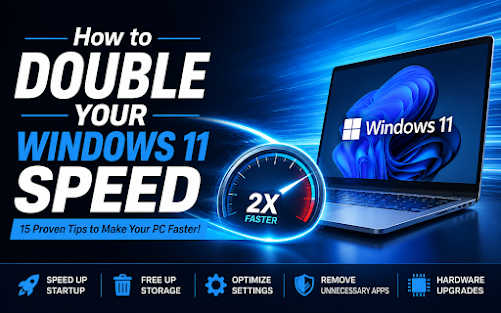
How to Double Your Windows 11 Speed: 15 Proven Tips to Make Your PC Feel Like New
Is your Windows 11 computer taking forever to start up? Do programs open slowly, or does everything feel sluggish? The good news is that you don't always need to buy a new computer. In many cases, a few simple optimizations can dramatically improve your PC's performance.
1. Disable Unnecessary Startup Programs
Many applications automatically launch when Windows starts. The more programs that load during startup, the longer your computer takes to boot.
How to do it:
1. Press Ctrl + Shift + Esc to open Task Manager.
2. Click the Startup Apps tab.
3. Disable programs you don't need immediately after startup.
Examples include:
Spotify
Discord
Adobe Creative Cloud
Microsoft Teams (if unused)
Zoom
Steam
Result: Faster boot times and more available memory.
2. Free Up Storage Space
Windows performs much better when your SSD or hard drive has free space available.
Delete unnecessary files:
Empty the Recycle Bin
Delete large downloads you no longer need
Remove temporary files
Uninstall unused software
Use Storage Sense:
Go to: Settings → System → Storage
Enable Storage Sense to automatically remove temporary files and keep your storage clean.
3. Uninstall Programs You Never Use
Many computers accumulate software over time that runs background services even when you're not using it.
Go to: Settings → Apps → Installed Apps
Remove:
Old games
Trial software
Toolbars
Manufacturer bloatware
Duplicate antivirus programs
Less software means fewer background processes consuming CPU and RAM.
4. Keep Windows Updated
Microsoft regularly releases performance improvements, security patches, and bug fixes.
Go to: Settings → Windows Update
Click: Check for Updates
Install all available updates.
5. Update Device Drivers
Outdated drivers can reduce system performance and cause crashes.
Important drivers include:
Graphics card
Network adapter
Chipset
Storage controller
You can update drivers through:
Windows Update
Your computer manufacturer's website
GPU manufacturers like NVIDIA, AMD, or Intel
6. Restart Your Computer Regularly
Many people leave their computers running for weeks.
Restarting:
Clears RAM
Stops unnecessary background tasks
Installs pending updates
Refreshes Windows
A simple restart can noticeably improve performance.
7. Scan for Malware and Viruses
Malware often runs silently in the background, consuming system resources.
Run a scan using:
Microsoft Defender
Malwarebytes
Removing hidden infections can significantly improve speed.
8. Turn Off Visual Effects
Windows 11 includes many animations that look nice but use extra system resources.
To disable them:
Search for Advanced System Settings
Open Performance Settings
Select: Adjust for Best Performance
Or manually disable animations while keeping smoother fonts.
This is especially beneficial for older computers.
9. Upgrade to an SSD
If your computer still uses a traditional hard drive (HDD), upgrading to a Solid State Drive (SSD) is the single biggest performance improvement you can make.
Typical improvements include:
Windows boots in 10–20 seconds
Programs open instantly
Faster file transfers
Less freezing
Even an older computer can feel like a new machine after an SSD upgrade.
10. Add More RAM
If your computer struggles with:
Multiple browser tabs
Microsoft Office
Zoom meetings
Photoshop
Video editing
More RAM can greatly improve multitasking.
Recommended memory:
8GB: Basic everyday use
16GB: Most users
32GB+: Professional workloads
11. Clean Up Your Desktop
A desktop filled with hundreds of files can slow Windows login and increase clutter.
Create folders for:
Documents
Pictures
Projects
Downloads
Keeping your desktop organized can improve responsiveness.
12. Use High Performance Power Mode
Windows often defaults to Balanced mode.
Go to: Settings → System → Power & Battery
Choose: Best Performance
This allows the CPU to operate more aggressively for improved responsiveness, especially on desktops or when laptops are plugged in.
13. Check Your Browser Extensions
Web browsers can become slow because of unnecessary extensions.
Review extensions in Chrome, Edge, or Firefox and remove those you no longer use.
You'll likely notice:
Faster browsing
Faster startup
Lower memory usage
14. Clean Your Computer Physically
Dust buildup can cause overheating, forcing the CPU to slow down to protect itself.
Every 6–12 months:
Clean dust from vents
Clean cooling fans
Ensure proper airflow
Cooler computers generally perform better and last longer.
15. Reset Windows (Last Resort)
If Windows remains extremely slow after trying everything else, a fresh installation can often restore like-new performance.
Go to: Settings → System → Recovery → Reset this PC
Choose whether to keep your personal files or perform a completely clean installation.
Always back up important data before resetting.
Bonus Tips
For even better performance:
Keep at least 20% free disk space
Avoid installing unnecessary "PC Cleaner" software
Use only one antivirus program
Restart at least once a week
Back up important files regularly
Replace aging hard drives before they fail
When Is It Time to Upgrade?
Sometimes software optimization isn't enough. Consider upgrading your hardware if:
Your computer is over 6–8 years old.
It still uses a hard disk drive (HDD).
It has less than 8GB of RAM.
The processor is no longer supported for modern Windows features.
You regularly use demanding applications such as video editing, CAD, or modern games.
Investing in an SSD or additional RAM can often extend the life of your computer by several years at a fraction of the cost of buying a new one.
Final Thoughts
A slow computer can be frustrating, but it doesn't always mean you need to replace it. By following these 15 practical tips, you can dramatically improve your Windows 11 experience, reduce startup time, and make everyday tasks smoother and more enjoyable.
If your computer is still running slowly after trying these optimizations, there may be underlying hardware issues or software problems that require professional diagnosis. An experienced technician can identify bottlenecks, recommend cost-effective upgrades, and ensure your system is running at its full potential.
At Prime TechCare, we specialize in Windows optimization, computer tune-ups, virus removal, SSD upgrades, memory upgrades, and complete PC repair services. Whether you're a home user or a small business, we're here to help you get the best performance from your technology.
Don't replace your computer until you've explored all your upgrade options—you may be surprised at how much faster it can become.
Contact Us
Get in touch with us
Phone Number:
info@primetechcarelv.com
© 2025. All rights reserved.
Address:
Email: