
Have an iPhone and want to backup your photos?
3 ways to back up photos from your iPhone to Windows PC
Tae K.
7/23/20261 min read
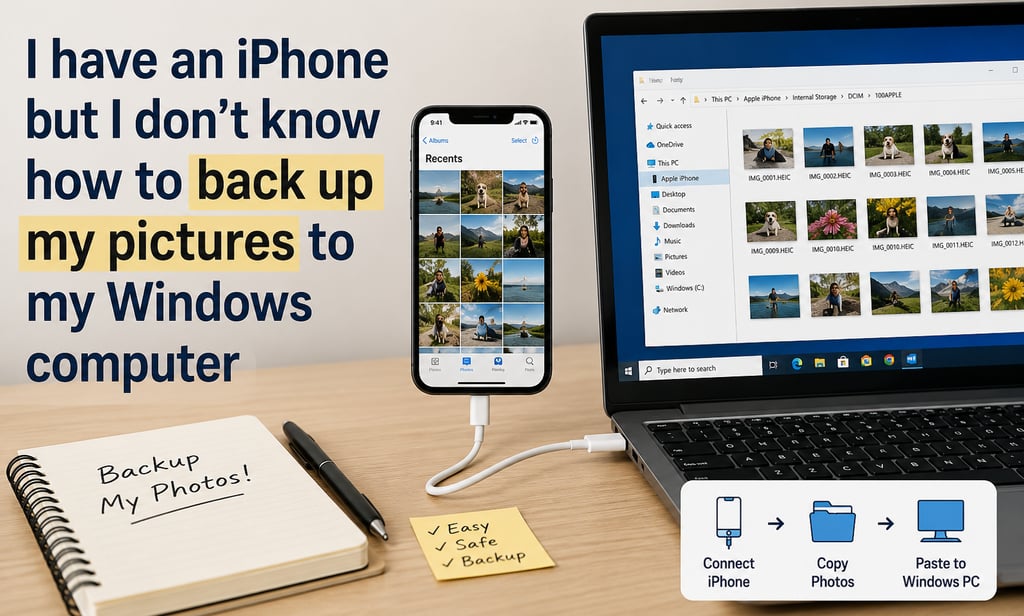
I have an iPhone but i don't know how to back up my pictures to my windows computer.
If you have an iPhone and a Windows PC, there are several ways to back up your photos. The easiest method depends on whether you want to keep everything on your computer or also use iCloud.
Option 1: Copy Photos with a USB Cable (Recommended)
This is the simplest way if you just want a backup.
Connect your iPhone to your Windows computer with a USB cable.
Unlock your iPhone.
If prompted, tap Trust This Computer and enter your passcode.
Open File Explorer on your PC.
Click This PC.
Double-click Apple iPhone.
Open Internal Storage → DCIM.
Open the folders inside (such as 100APPLE, 101APPLE, etc.).
Select the photos you want and drag them to a folder on your computer, such as:
Pictures
Desktop
An external hard drive
Pros
Free
Full-resolution photos
No internet required
Option 2: Use the Windows Photos App
Connect your iPhone with a USB cable.
Unlock your iPhone and tap Trust if asked.
Open the Photos app in Windows.
Click Import → From a connected device.
Select the photos to import.
Click Import.
Windows will organize them by date automatically.
Option 3: Use iCloud Photos
If your iPhone already uses iCloud Photos:
Install iCloud for Windows.
Sign in with your Apple ID.
Turn on Photos.
Your iCloud photos will download to your PC automatically.
This is convenient if you want your photos to stay synced across devices.
Contact Us
Get in touch with us
Phone Number:
info@primetechcarelv.com
© 2025. All rights reserved.
Address:
Email: